
Part 3 of the ARIA series: in Part 2 I promised we would build an MCP server and look at how the protocol actually works. This is that post. We give ARIA a small MCP server that exposes its read-only Azure features, then open MCP Inspector and watch its tools, resources, and prompts working one by one.
In the previous two posts, I focused on using AI to build ARIA, my Azure Resources Inventory App. This time, I’m taking things in a slightly different direction. Rather than adding another feature to the application, I wanted to explore how an AI assistant can interact with it through the Model Context Protocol (MCP). In this post, I’ll build a simple MCP server, connect it to ARIA, and use MCP Inspector to see exactly how the protocol works behind the scenes.
In part one [PART 1] I built ARIA (Azure Resources Inventory App), a small Blazor app made almost entirely with Claude Code. It connects to Azure with the logged-in user’s az login session, lists subscriptions, and shows a grid of hardcoded resources. In the second post [PART 2] I added a Function App details view and switched from a free-form PRD.md to GitHub Spec Kit to drive the work.
This time we do something different. We are not adding another page. We are giving ARIA a second way to be used: not by a person clicking in a browser, but by an AI assistant talking to it over a protocol. That protocol is MCP, and by the end of this post you will have a server you can poke at by hand in a tool called MCP Inspector, so the abstract parts of the protocol turn into buttons you can click.
As before, you do not need to know Blazor to follow along. The new idea here is MCP, so most of the post is about the protocol and the tooling around it, not the framework.
What MCP is, in plain words
MCP stands for Model Context Protocol. It is an open standard for connecting AI assistants to the outside world in a consistent way. Before MCP, every tool that wanted to plug into an assistant invented its own glue. MCP replaces that with one shape everyone agrees on: an assistant (the client) talks to a server that offers a fixed menu of capabilities, and any client that speaks MCP can use any server that speaks MCP.
The important mental model is that the MCP server is the thing that owns a capability, and the AI is just a client that calls it. ARIA already knows how to talk to Azure and list resources. An MCP server is a thin layer on top of that knowledge that says “here is what I can do, described in a standard way, come and call it.” Claude, or Claude Desktop, or any other MCP client, can then discover those capabilities and use them without knowing anything about ARIA’s internals.
A server offers its capabilities in three flavours, and these three are the heart of the protocol. They are worth learning up front, because the rest of the post is really just building each one and then looking at it in Inspector.
Tools
Tools are actions the AI can ask the server to perform. A tool has a name, a description, and a set of typed inputs, and it returns a result. Think of them as functions the assistant is allowed to call. In ARIA our tools will be things like “list the subscriptions”, “list the resources in this subscription”, and “get the details of this function app”. The AI reads each tool’s description, decides which one fits the user’s request, fills in the inputs, and calls it. Tools are the part people usually think of first when they hear “MCP”, because they are where things actually happen.
Resources
Resources are read-only pieces of data the server makes available. Where a tool is a verb, a resource is a noun. A resource has a URI, a bit like a web address, and the client can list what is available and read it. Resources are for context the AI might want to look at rather than actions it wants to run: a document, a config file, a record. In ARIA a resource could be the list of subscriptions exposed as readable data at an address like azure://subscriptions. The difference from a tool is subtle but real: a tool is something you do, a resource is something you read.
Prompts
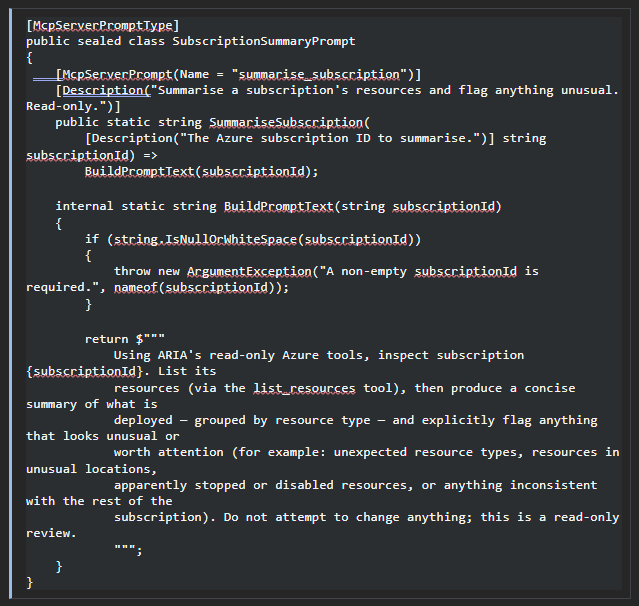
Prompts are reusable prompt templates the server offers to the client. They are pre-written instructions, sometimes with a slot or two to fill in, that a user can pick from a menu. The idea is that the server author knows the good way to ask for something, so they ship it, and the user does not have to reinvent the wording. In ARIA we will add a simple one, for example a template that says “summarise the resources in subscription {id} and flag anything that looks unusual”. The user picks the prompt, fills in the subscription, and the assistant runs it.
So: tools do, resources are read, prompts guide. Keep those three in your head, because we are going to build all three and then see each one light up in Inspector.
How does an assistant know any of this exists? When you register an MCP server with an assistant, the two do a short handshake and the assistant asks the server what it offers. From then on, at the start of a conversation the server’s tool descriptions are loaded into the model’s context, so the model knows the menu and can decide, from what you ask, which tool to call and with what inputs. That is why the descriptions matter so much: they are what the model reads to make that choice.
It is worth being precise here, because the three primitives do not all behave this way. They differ in who decides when each is used. Tools are model-controlled: the model calls them on its own when it judges they fit the request. Prompts are user-controlled: they are offered to a person as selectable options, like a menu command, and are never fired off by the model on its own. Resources are application-controlled: the host application, or the user, decides which ones to pull in as context, rather than the model fetching them by intent. So the “loaded in, then called from intent” story is really the story of tools. Prompts wait for a user to pick them, and resources wait for the application to supply them.
One more thing before we build. A server needs a way to actually exchange messages with a client, and MCP calls this the transport. The two you will meet are stdio, where the client launches the server as a local process and talks to it over standard input and output, and HTTP, where the server runs as a web endpoint and the client connects to a URL. ARIA is already a web application, so it is natural for us to host the MCP server inside the same app over HTTP. I will mention stdio again at the end, because it is the more common shape for small standalone servers and it is worth knowing the difference. If you want the mechanics, there is an appendix at the end that explains how the modern HTTP transport (Streamable HTTP) works, how the older, now-deprecated SSE transport worked, and what the JSON-RPC messages underneath actually look like.
Prerequisites
- The ARIA project from Parts 1 and 2, with Spec Kit already set up.
- Claude Code with an active subscription (Pro or higher recommended for this kind of project work).
- You are logged in to Azure with az login, and the account can read at least one subscription with a Function App in it, so the tools return real data.
- Node.js installed, so you can run MCP Inspector with npx. You do not install Inspector permanently – npx fetches and runs it on demand.
- The habit from the earlier posts: Git from the start, commit after every working step.
A workflow decision before we write anything
There is a decision to make before the first line of code, and it is a good illustration of what Spec Kit is for.
In Part 2 the ARIA constitution, the file Spec Kit uses to hold the project’s non-negotiable rules, gained a principle that says the app is Blazor Interactive Server with MudBlazor UI, and nothing else. That rule made sense when every feature was a page. But an MCP server is not a page. It is a protocol endpoint with no user interface at all. The moment I tried to spec this feature, that principle was in the way: what I want to build openly contradicts a rule I told the project to enforce.
This is exactly the kind of thing the PRD approach in Part 1 would have let me walk straight past. Spec Kit does not, because the plan step runs a “constitution check” and would flag the conflict. So, the honest first move is not to sneak the feature in, it is to change the rule on purpose.
I amend it with /speckit-constitution, passing the change as an argument. This is the exact command I run in Claude Code:
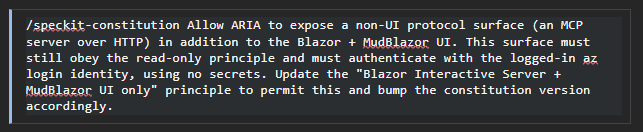
The change is small: I add that ARIA may expose a non-UI protocol surface (an MCP server over HTTP), as long as it still obeys the two rules that actually matter for safety, that everything stays read-only and that authentication stays the logged-in az login identity with no secrets. Spec Kit rewrites the affected principle, bumps the constitution’s version for me, and notes the change in the file’s sync report. That is the whole point of having a constitution: not that it can never change, but that changing it is a deliberate, recorded act rather than a quiet drift.
With the rule fixed, the rest is the lean Spec Kit path from Part 2: specify, plan, tasks, implement. I skip /speckit-clarify and /speckit-analyze here because the feature is small and well understood. As I found in Part 2, all those extra steps are worth it on a big feature, but on a small one they only slow you down. This is a small one. The next four steps are the exact commands I run, in order.
Step 1: Specify what the server exposes
/speckit-specify captures what we want, in plain behaviour, with no technology in it. The whole design decision here is which capabilities to expose, so I describe the three tools, the one resource, and the one prompt, and nothing about how they are built:
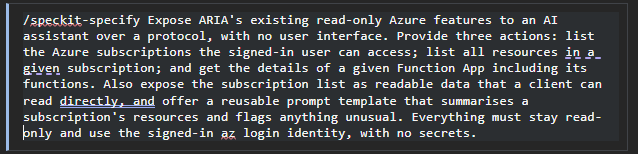
Notice there is no mention of MCP, a package, or a transport in there. That is deliberate: the spec is the what, and the how belongs in the plan. Claude writes a spec.md describing three tools, one resource, and one prompt in behavioural terms.
Step 2: Plan the how
/speckit-plan is where the technology decisions go, and it answers a question you might have about the package: the NuGet package is chosen here, not added by hand. Just like the Azure packages in Part 2, I describe what I want and let Claude name the library in the plan, then I sanity-check its choice. I do not run dotnet add package myself – the plan records the package and the implement step installs it.
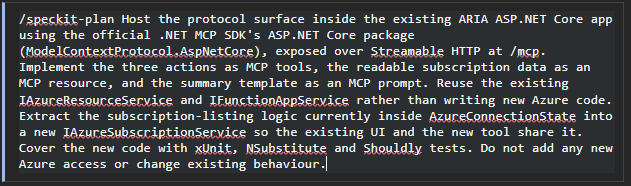
This time the plan’s constitution check passes, because we amended the rule it would otherwise have failed. The plan names ModelContextProtocol.AspNetCore as the one new dependency and confirms that no new Azure code is needed, only a thin layer over the services we already have.
Step 3: Generate the tasks and build
Two commands, no arguments:

What Claude built
It helps to see what came out of /speckit-implement, because it shows how little code an MCP server really is when it sits on top of services that already work.
One caveat before the code, the same one from the first post: Claude is a large language model, and its output is non-deterministic. Run this yourself and the class names, the file layout, the comments, even small choices in how a method is written will come out a little differently each time. So treat the snippets below as one plausible result, not the canonical answer. What should be the same every time is the shape: a thin tool class per capability, a resource, a prompt, and the registration that wires them together.
Wiring the app into an MCP host. In the start-up file the implement step made two additions: it registered the MCP server and told it to pick up our tools, resources, and prompts over the HTTP transport, and after the app is built it mapped the server to /mcp.
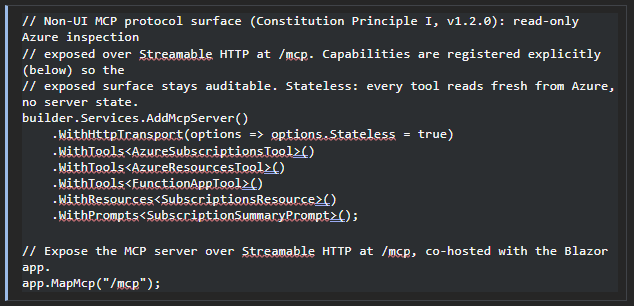
The MCP endpoint now lives inside the same ARIA app as the web pages. Run the app and you get both: the browser UI on its usual address, and an MCP server on /mcp.
It is worth being clear about what a call to that endpoint actually is. Every MCP call is an ordinary HTTP request. When Inspector, or an AI client, calls a tool, it sends an HTTP request to /mcp, and ASP.NET Core handles it exactly like any other request the app serves. There is no separate protocol machinery to reason about. It is the same request pipeline the web pages already use.
That is what makes reusing ARIA’s services painless. Because each MCP call is its own HTTP request, it gets its own dependency-injection scope, so a tool can ask for ARIA’s existing services the same way a page does and receive a fresh, correctly scoped instance for that call.
The three tools. Tools in the .NET SDK are just methods, marked with an attribute and given a description. The description matters more than usual, because it is what an AI reads to decide whether to call the tool. Each method asks for the ARIA service it needs, calls it, and returns the result. There is almost no logic here, which is the goal: the server is a thin, well-described skin over code that already works.
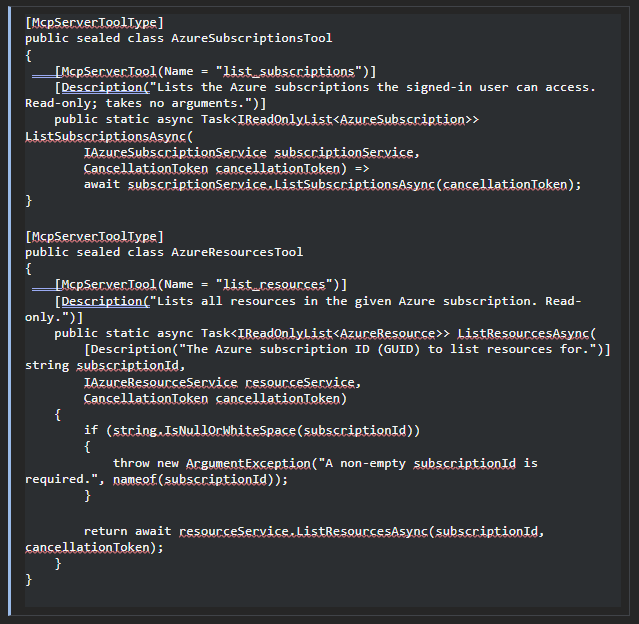
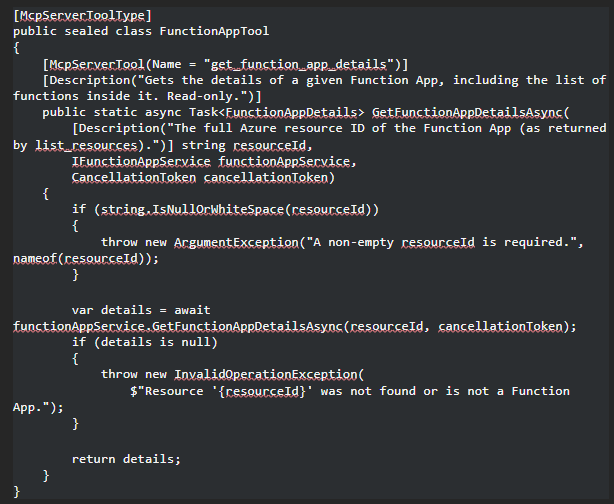
Look closely at the parameters, because the SDK treats two kinds differently. A parameter that is one of ARIA’s services, like IAzureResourceService, is filled in from dependency injection and is never shown to the client. A plain parameter like subscriptionId or resourceId is a real input: it becomes part of the tool’s input schema, and the client, or the AI, has to supply a value when it calls the tool. That is why list_subscriptions takes no inputs at all, while the other two each take one. The [Description] on an input is not decoration either. It is the label the client sees for that field, and it is exactly what you will fill in by hand in Inspector later. So describe your inputs as carefully as you describe the tools.
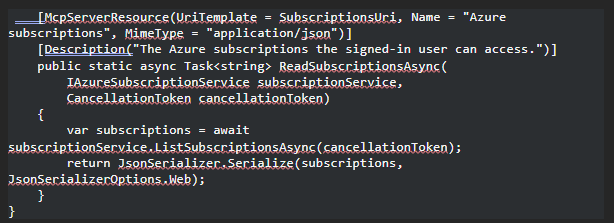
A resource and a prompt. To round out all three parts of the protocol, implement also added one resource and one prompt.
The resource exposes the subscription list as readable data at a URI, so a client can read it rather than call it. It reuses the same subscription service.

The prompt is a canned template with one slot to fill in. It does not do anything by itself. It is a good starting instruction the server offers so the user does not have to word it themselves.
Step 4: Run it
The code is already written, so this step is just running the app the usual way. Nothing about the browser UI changes. What is new is that the running app now answers on /mcp. That endpoint does not do anything useful in a browser. You need a client to talk to it. That client, for us, is MCP Inspector.
Step 5: Running MCP Inspector
MCP Inspector is a small visual tool made by the MCP project itself, for exactly this moment: you have a server and you want to see whether it works before you wire it into a real assistant. It lists everything the server offers and lets you call it by hand, and it shows you the raw messages going back and forth.
Start it from a terminal:

This opens Inspector in your browser. In the connection panel, choose the Streamable HTTP transport and enter the ARIA server’s address with the /mcp path on the end, for example https://localhost:5067/mcp. Make sure ARIA is running first, and that the terminal you launched it from is logged in with az login, because the tools reach real Azure and inherit that identity. Click Connect.
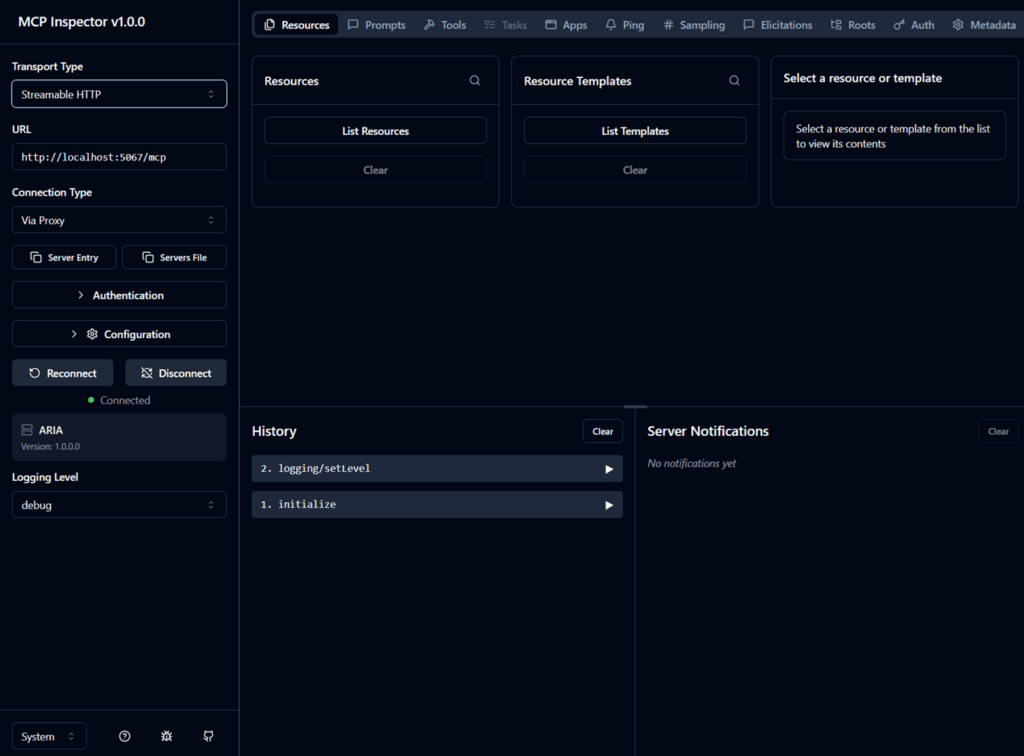
Once connected, Inspector shows tabs across the top, one per part of the protocol. This is the payoff of the whole post: the three abstract ideas from the start are now three tabs you can click.
Tools in Inspector
Open the Tools tab and click “List Tools”. Inspector shows our three tools with the descriptions we wrote, and for each one the inputs it expects. This is the same tools/list request an AI client makes under the hood. Inspector is just showing it to you.
Pick list_subscriptions and run it. With no inputs, it returns the subscriptions your az login account can see. Now pick list_resources, paste one of those subscription ids into the input box, and run it. You get the same resource list the ARIA grid shows, but as raw data. Finally try get_function_app_details with the resource id of a function app, and you get its properties and its list of functions.
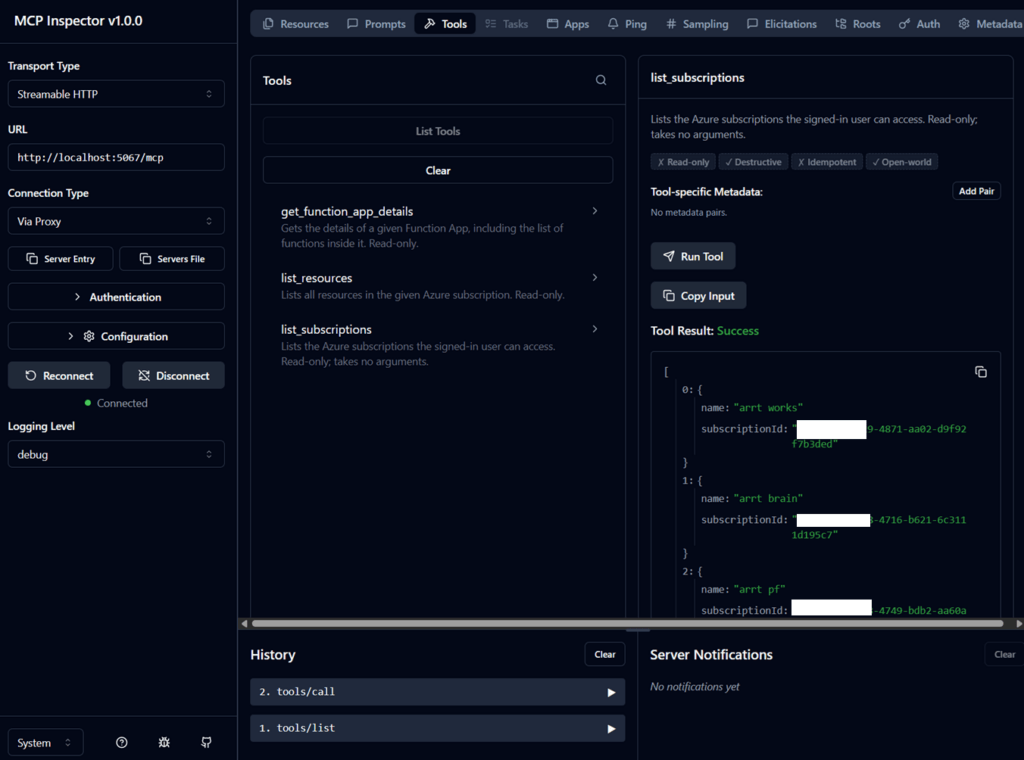
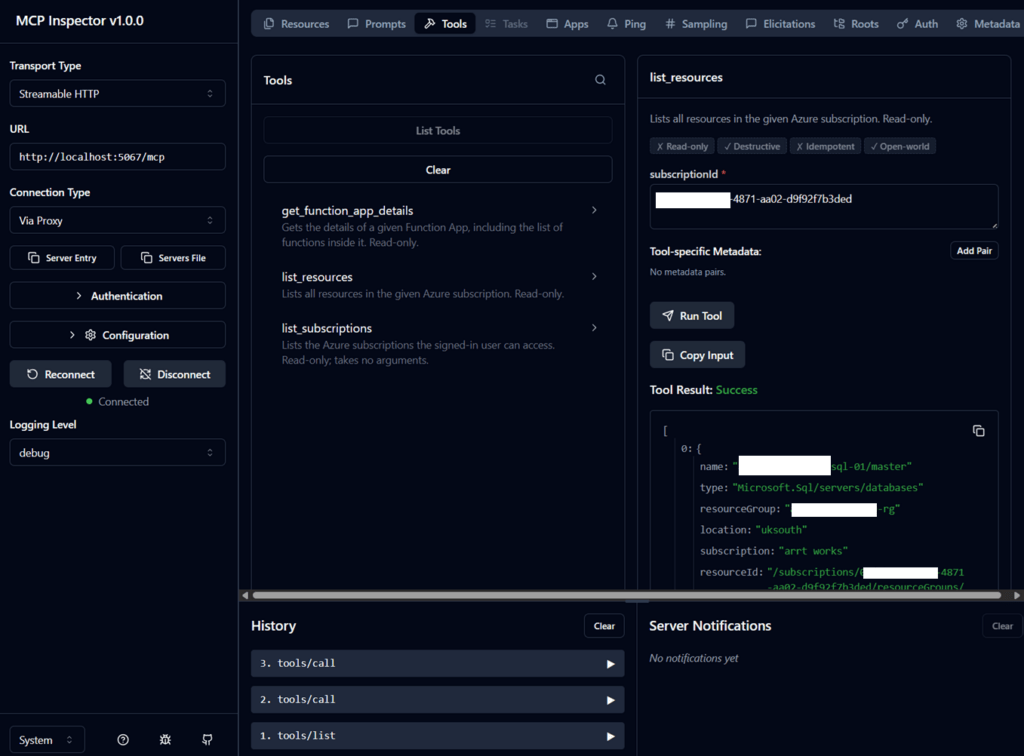
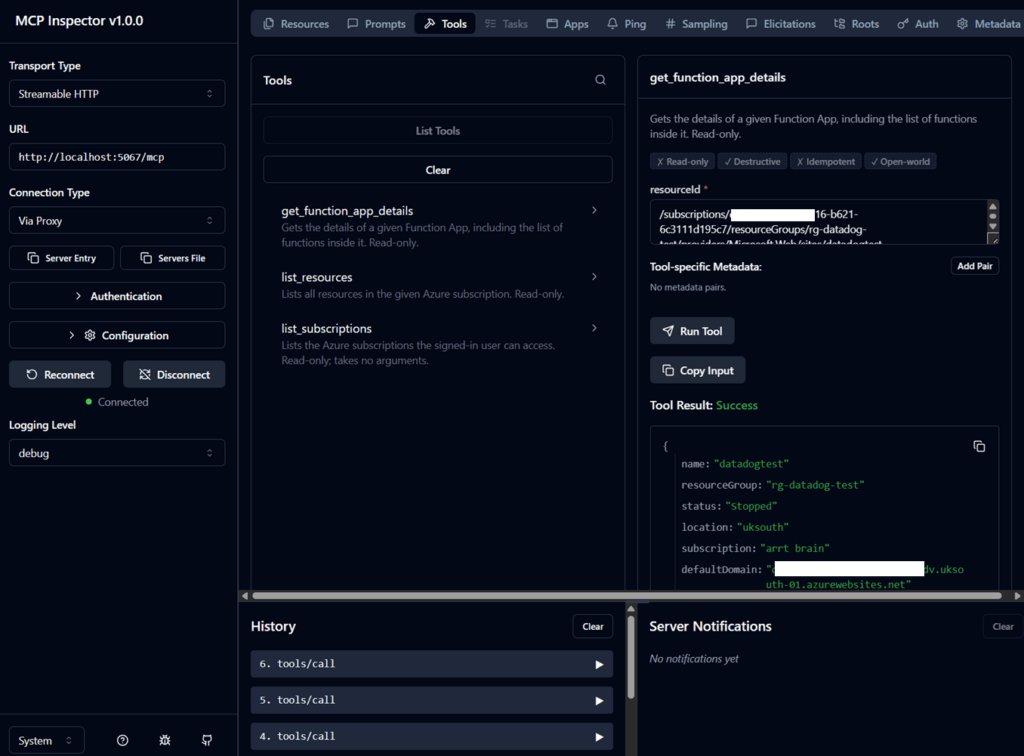
In the History pane, where Inspector lists every request and response, you can watch the messages for the call you just made go by. This is worth a look, because it makes the protocol concrete: a tools/call message goes out with the tool name and your inputs, and a result comes back. Do not be surprised that Inspector shows a tidied-up version, usually just the method and its params or result, rather than the full message. It leaves out the jsonrpc and id framing fields that travel on the wire, so what you see for initialize looks as short as { “method”: “initialize” }. There is no magic here, just a well-described function call. If you want to see the complete messages, envelope and all, for ARIA’s own tools, the appendix at the end walks through them line by line.
Resources in Inspector
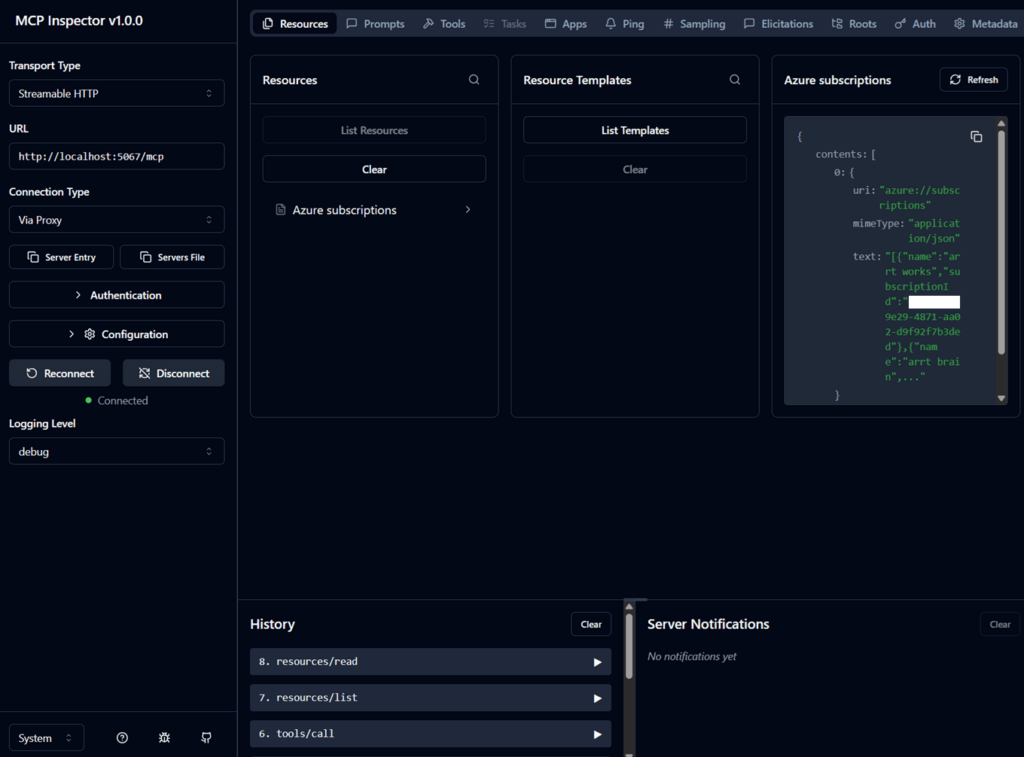
Open the Resources tab and click “List Resources”. Our one resource, azure://subscriptions, appears. Select it and Inspector reads it, showing the subscription list as data. This is the resources/list and resources/read pair of messages. The point to notice is that this returned the same information as the list_subscriptions tool, but through the resource channel: the client read it rather than called it. That is the tool-versus-resource distinction from the start of the post, now visible.
Prompts in Inspector
Open the Prompts tab and click “List Prompts”. Our summarise_subscription prompt appears, with its one input. Select it, type a subscription id into the slot, and Inspector shows you the finished prompt text the server hands back. Nothing is sent to an AI here. Inspector just shows you the template being filled in. In a real client, this is what the user would pick from a menu and then send.
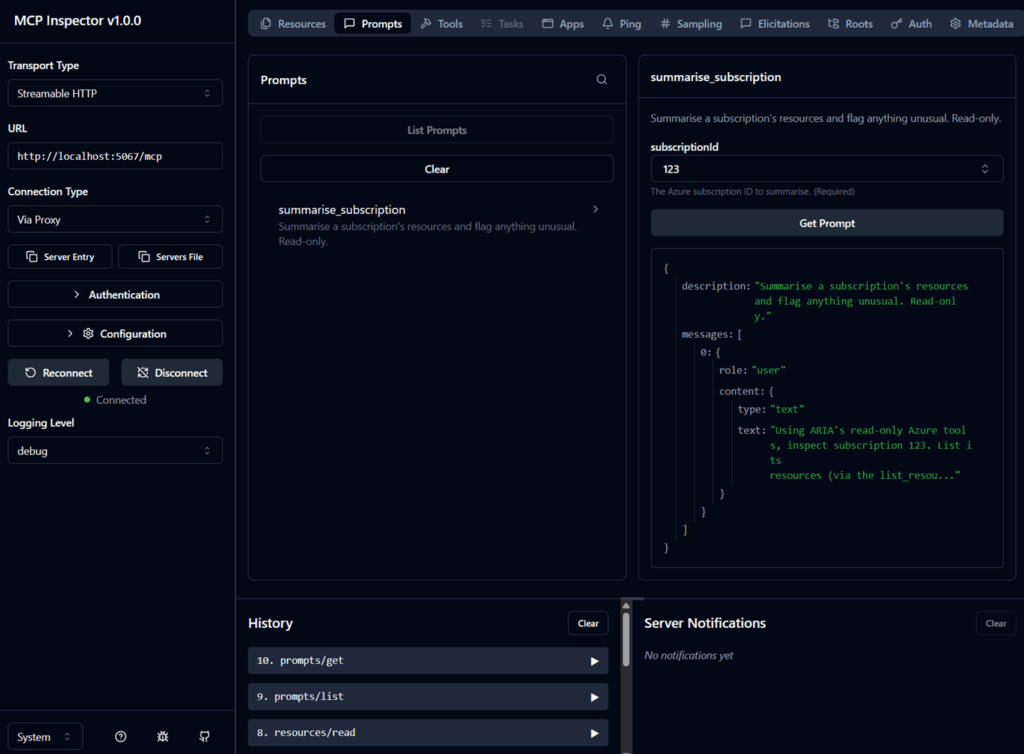
With those three tabs, you have now seen every core part of an MCP server working, against a real server you built, talking to real Azure.
A word on the other transport
We hosted the server over HTTP because ARIA is already a web app and it was the least effort. The other common shape is stdio, where there is no URL at all: the client launches the server as a local program and talks to it through its standard input and output.
stdio is the right choice when the server runs on the same machine as the client and serves just that one user. A few real-world cases make it concrete: a server that reads and writes files in a folder on your machine; one that runs queries against a local database like SQLite or a Postgres on your laptop; one that wraps a command-line tool you already have, such as git, kubectl, or the Azure CLI, so an assistant can drive it for you; or a small server shipped as an npm or Python package that a desktop client like Claude Desktop, Cursor, or VS Code launches on demand. In all of these there is nothing to host and no port open on the network: the client starts the program, talks to it over its input and output, and shuts it down when the conversation ends. That is simple, and because nothing is listening on a socket, it is easy to reason about for security.
The protocol and the three parts we built are identical either way. Only the way messages travel changes. If you later pull ARIA’s MCP server out into its own small console program, switching it to stdio is a one-line change, and Inspector can connect to that too by launching the command instead of entering a URL. The appendix goes deeper on the HTTP side: how Streamable HTTP works, and how the older SSE transport it replaced used to work.
When something does not work
Same lesson as the earlier posts, so I will keep it short. If a tool returns an error rather than data, the most likely cause is the same as in Part 2: Azure permissions. Reading a subscription is one thing, reading inside a function app needs your account to have rights on that resource. Do not start editing the generated tool code. Describe the symptom in one sentence, paste the full error, and say what you already tried, and let Claude tell you whether it is a permissions problem or a code problem.
The other new failure mode is the connection itself. If Inspector will not connect, check that ARIA is actually running, that you used the /mcp path, and that you picked the Streamable HTTP transport rather than stdio. A local HTTPS certificate warning can also get in the way – the usual dotnet dev-certs https –trust clears that up.
Wrapping up
ARIA now has an MCP server that lives inside the same app as its web pages, exposes its read-only Azure features as three tools, one resource, and one prompt, and reuses the Azure code we already had rather than duplicating it. Along the way we saw the protocol’s three parts stop being abstract: in Inspector, tools are things you call, resources are things you read, and prompts are templates you fill in.
A few things worth taking from this post:
- The three parts are the protocol. If you understand tools, resources, and prompts, you understand what an MCP server is for.
- A good MCP server is thin. Ours is a described skin over code that already worked. Keep the real logic in your services and let the tools just call them.
- Inspector is where you learn. Before wiring a server into a real assistant, poke it by hand and watch the messages. It turns the protocol from a spec into something you can click.
In the next post we take ARIA’s MCP server off the laptop and into the cloud. We deploy it to Azure, then put Azure API Management in front of it, so the /mcp endpoint is reached through a managed gateway rather than exposed directly. That raises the question this local walkthrough quietly skipped: authorization, or how a remote client proves it is allowed to call the server at all. We will weigh the options there, from API Management subscription keys to OAuth and Microsoft Entra ID. And instead of poking the server by hand in Inspector, we will connect a real client to it: Claude Code, the terminal-based CLI, so the tools we tested here get used from an actual working session rather than a test tool.
Appendix: transports and the JSON-RPC wire
The main post treated the protocol as something you click in Inspector. This appendix opens the hood. None of it is required to build or use ARIA’s MCP server, but it fills in the mechanics the main post skipped over, and it explains why the connection panel offered “Streamable HTTP” and not the older “SSE” you may still see mentioned elsewhere.
JSON-RPC, the message format
Whatever the transport, the messages themselves are always JSON-RPC 2.0. This is a small, old, and boring standard, which is exactly why MCP uses it. There are only three shapes to know:
- A request has a jsonrpc field (always “2.0”), an id that ties a response back to it, a method name, and a params object. It expects a response.
- A response carries the same id and then either a result (on success) or an error (on failure), never both.
- A notification looks like a request but has no id. It is fire-and-forget, and no response comes back.
Everything you did in Inspector was one of these. Listing tools is a tools/list request; running a tool is a tools/call request; reading a resource is resources/read; and so on. One note before the samples: Inspector shows you a tidied view of each message, usually just the method and its params or result, and it leaves out the jsonrpc and id framing fields. The samples below are those same messages with that framing added back – the jsonrpc: “2.0” marker and the id that pairs each response to its request – so you can see the envelope Inspector hides. Here is that traffic for ARIA’s tools.
First, every session opens with an initialize handshake, where the client and server introduce themselves and list what they support:
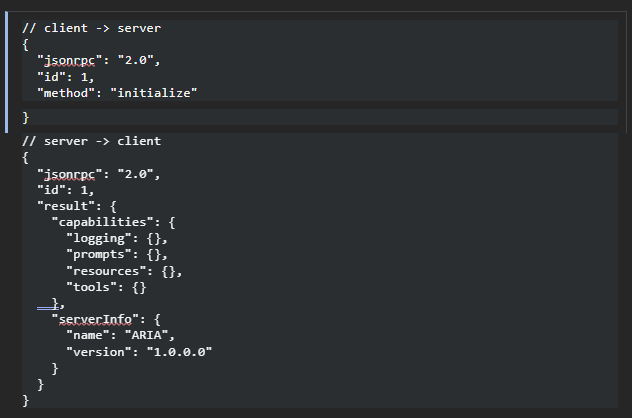
The server’s capabilities are how it announces what it supports – here tools, resources, prompts, and logging – which is why Inspector then shows a tab for each of the three main ones. Clicking “List Tools” sends a tools/list request, and the server answers with the three tools we wrote:
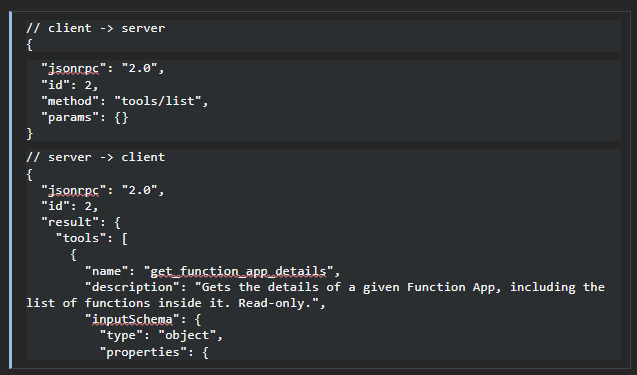
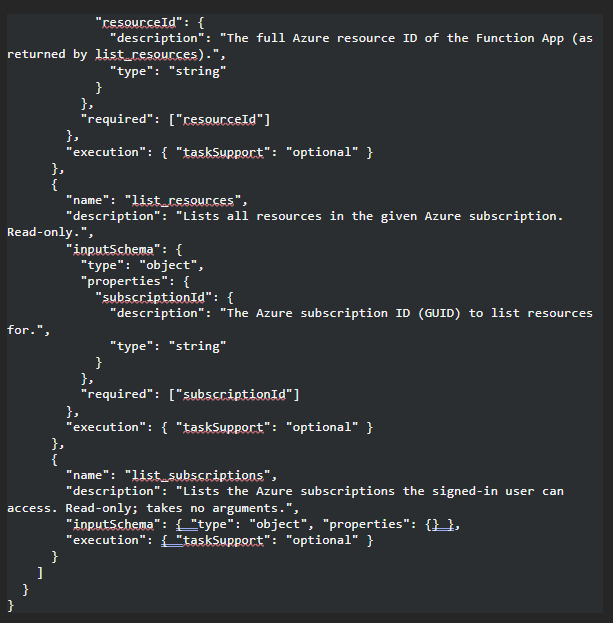
This is worth pausing on, because it is where the earlier note about input parameters becomes visible. The description on each tool and the inputSchema for each one were not written by hand: the SDK generated them from the [McpServerTool] methods and their [Description] attributes. list_subscriptions has an empty properties because it took only an injected service and no real inputs, while list_resources and get_function_app_details each have exactly one required property, matching their one input parameter. The AI reads this schema to know how to call the tool. (The execution block is just an SDK hint about whether the call may run as a background task; you can ignore it here.)
Running list_resources in Inspector sends a tools/call, naming the tool and passing your input under arguments:
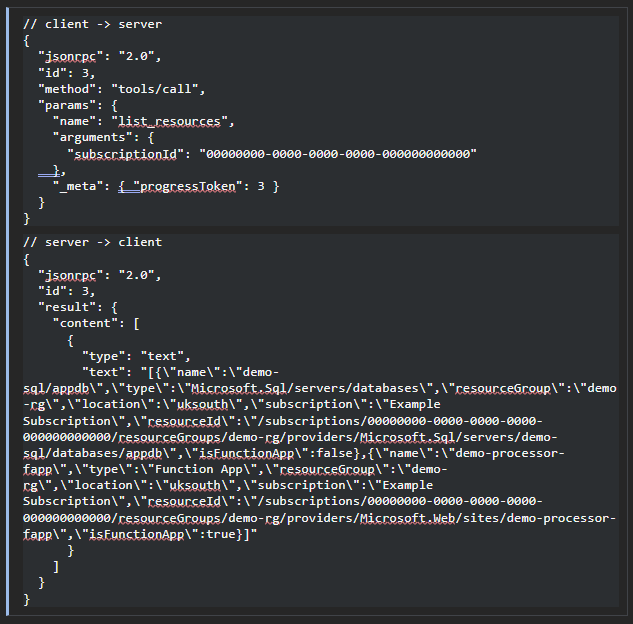
The resources our tool returned come back inside a content array, as one block of text – and that text is itself a JSON array. That is the standard shape of a tool result: an array of content blocks the client can show or feed to a model. Unescaped and formatted, that text is just our list of resources:
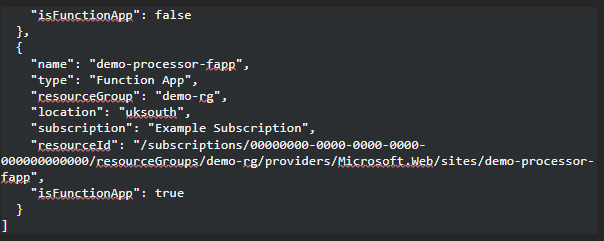
Notice demo-processor-fapp: its type is Function App and isFunctionApp is true. That is the row you would take the resourceId from to feed get_function_app_details.
There are two kinds of failure, and MCP keeps them apart on purpose. If you call something that does not exist, or send a malformed request, you get a JSON-RPC error with a numeric code:
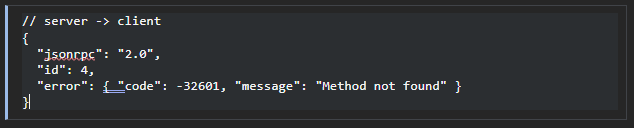
But when a tool runs and fails at its job, for example the Azure permission error from the “when something does not work” section, that does not come back as a JSON-RPC error. It comes back as a normal result with “isError”: true and the message in the content. The reason is that the AI is supposed to see tool failures and react to them, so they travel through the same channel as a successful result rather than as a protocol-level fault.
Streamable HTTP, the transport we used
JSON-RPC says what the messages are. The transport says how they travel. ARIA uses Streamable HTTP, the current HTTP transport for MCP, introduced in the 2025-03-26 revision of the spec.
The whole thing lives at a single endpoint, our /mcp, which accepts two HTTP methods:
- The client POSTs a JSON-RPC message to /mcp. For a simple call like tools/list, the server just replies with a single JSON response, Content-Type: application/json, and that is the whole exchange, one request and one response, like any ordinary web API.
- For a longer or multi-part response, the server can instead upgrade the reply to a Server-Sent Events stream, Content-Type: text/event-stream, and push a sequence of messages back over that one response before closing it. The client says which it can handle through the Accept header on its POST – the server picks.
- The client can also open a GET to /mcp to receive messages the server wants to start on its own, such as progress updates or notifications.
Sessions are handled with a header. On the initialize response the server may include an Mcp-Session-Id, and if it does, the client repeats that header on every later request so the server knows which session the message belongs to. ARIA does not: we registered the transport with Stateless = true, so it keeps no per-session state and issues no Mcp-Session-Id. Every call stands alone and reads fresh from Azure, which is what lets the same server sit behind a load balancer with no stickiness.
The important word is may. A short exchange is just a POST and a JSON reply, with no long-lived connection to keep alive. The streaming is there when a response needs it, not imposed on every call. That is what makes Streamable HTTP comfortable to host inside a normal web app like ARIA and easy to put behind ordinary load balancers.
One point that trips people up: Streamable HTTP still uses SSE, as the optional streaming mode inside that single endpoint. So SSE as a technology is not gone. What was deprecated is the older, separate transport described next, which was built entirely around a mandatory SSE connection.
The deprecated HTTP+SSE transport
Before the 2025-03-26 revision, the HTTP transport had a different, clumsier shape, usually called HTTP+SSE. You will still see it referenced in older servers and tutorials, and Inspector historically listed it as its own “SSE” option, which is why it is worth recognising.
It used two endpoints:
1. The client opened a long-lived GET /sse connection and held it open. The server’s first message on that stream told the client where to send requests, typically a URL like POST /messages?sessionId=abc123.
2. The client then POSTed its JSON-RPC requests to that /messages URL, but the responses did not come back on the POST. They arrived asynchronously down the original /sse stream.
So, every session depended on one long-lived connection that had to stay up the entire time. That caused real problems. If the stream dropped, the session was simply gone, with no way to resume it. And it scaled badly: because responses had to travel back down the exact stream the client was holding, the POST /messages had to be routed to the one server instance that held that connection, which does not fit cleanly behind a normal load balancer.
Streamable HTTP was introduced to fix exactly these issues by collapsing the two endpoints into one and making the persistent stream optional instead of mandatory. The spec now labels HTTP+SSE the “deprecated” transport and keeps it documented only so newer clients can still talk to servers that have not moved over. For anything new, including ARIA, Streamable HTTP is the one to use, which is why it is the transport we picked in Inspector without a second thought.
I hope this has helped make MCP feel a little less abstract. In the next part of the series, I’ll take ARIA’s MCP server into Azure, put API Management in front of it, and explore what it takes to make it securely accessible to real AI clients. If you’re exploring AI, Azure Integration or MCP within your own organisation and would like to discuss how ARRT can help, please contact us at https://arrt.uk.com/contact-us/.

Author: Damian Sliwinski
Azure Integration Developer

follow us